· 16 min read
Dynamic Email Template for Golf Tournaments: A Build Guide
Learn how to build a dynamic email template for golf tournaments, with placeholders, fallbacks, live-data rules and edge-case tests before every send.
It's Thursday afternoon before a Saturday member-guest, and the tee sheet has already changed twice because of late withdrawals. Someone in the golf shop copies last month's reminder email, swaps the date by hand, and hits send. Ten minutes later, the phone starts ringing because three foursomes got last month's starting hole and one new member received a greeting that reads "Hi,".
Research cited in Mailfloss's overview of dynamic email content shows that personalized promotional emails achieved 29% higher unique open rates and 41% higher unique click rates than nonpersonalized mailings. The same overview reports that 52% of brands use some form of dynamic content, fewer than 20% apply it to broadcast emails, and roughly 95% of total email volume sits in broadcasts. That gap matters in tournament work, where one event list can carry tee times, pairings, registration status, and last-minute changes.
For golf facilities, failure points rarely sit in the sending software. A dynamic email template breaks when fallback sentences are skipped, when volatile live scores get baked into static email text, or when staff preview a message using one spotless roster record instead of a broken one. Treat fallback text, the split between send-time details and live data, and deliberately broken-record tests as part of the template itself. That is the practical way to stop the Thursday afternoon phone calls before they start.
Dynamic Email Templates Defined
A dynamic email template is a single reusable layout built with merge placeholders such as {{first_name}}, {{event_name}}, {{tee_time}}, and {{registration_status}}. At send time, the system fills each placeholder from that specific player's event record. When a field on the roster is blank, a pre-written fallback sentence takes its place so no player ever sees an empty gap or raw bracketed code.
Consider one line inside a tee-time reminder: Your tee time is {{tee_time}} from Hole 1. When the batch runs for Maria, whose starting time is locked in, her inbox shows Your tee time is 8:20 AM from Hole 1. When the same batch runs for a late registrant whose starting slot isn't assigned yet, the fallback renders Your tee time will be emailed once it is set.

Player expectations match what consumers already expect everywhere else. In 2024, 71% of shoppers said personalized experiences would influence their decision to interact with emails, according to Mastercard's 2024 personalization guide, citing Dynamic Yield research. When tournament staff send outreach, they usually weigh three production approaches:
- Static broadcast emails: Every golfer gets identical copy with a PDF tee sheet attached, forcing players to hunt through five pages on a phone screen just to find their pairing.
- Copied and hand-edited emails: Staff duplicate a prior message from their sent folder and swap dates, courses, and fees manually, which works once a year but invites typos on busy weeks.
- Reusable dynamic templates: Staff build one structured framework per event type and reuse it across weekly leagues, monthly member outings, or recurring charity scrambles, starting from clean golf tournament invitation templates and carrying the same data rules through reminders and post-round wraps.
The payoff grows fast whenever an event type repeats on the calendar. Once automated reminders go out to a full field, replies about cart requests, dietary needs, and pairing swaps also spike in the pro shop inbox, which is why some operations pair outbound templates with an AI inbox organizer for service businesses from Expressify AI to sort incoming player questions before tournament morning.
A dynamic template isn't just a prettier email. It's a three-part system made of a placeholder map, modular blocks with fallback text, and pre-send tests built for tournament directors, league managers, club staff, and charity organizers.
Placeholders to Map Before You Build
Before touching colors, logos, or button styles, write down every merge field the email needs and trace where each value lives. The table below lists the core fields most golf tournament emails rely on, ordered from top to bottom the way a golfer reads them on a phone screen.
| Placeholder | Pulled From | Example Value |
|---|---|---|
{{first_name}} |
Player roster | Maria |
{{event_name}} |
Event settings | Spring Member Stroke Play |
{{format_label}} |
Event format setting | Stroke play, net |
{{course_name}} |
Event settings | North Course |
{{tee_time}} |
Tee sheet | 8:20 AM from Hole 1 |
{{partner_name}} |
Pairings | Tom Reyes |
{{registration_status}} |
Registration record | Paid |
{{event_link}} |
Event page | Link to the live leaderboard page |
Walking down that list shows how cleanly data sources divide. The player roster supplies personal details like {{first_name}}, which stays accurate only when signups feed in through a structured player registration form rather than scribbled clipboard sheets. Event settings populate {{event_name}}, {{course_name}}, and {{format_label}} once for the entire field.
Next come the operational records that change right up until tee-off. The tee sheet controls {{tee_time}} along with the starting hole, pairings supply {{partner_name}}, the registration record tracks {{registration_status}}, and the event page generates {{event_link}}. Notice what's deliberately absent from the table: Handicap Index. Under the 2024 World Handicap System Rules of Handicapping, a Handicap Committee is responsible for running a Handicap Review regularly, or at least once a year, and can adjust a player's Handicap Index when the scoring record warrants it. Keep Handicap Index on the administrative roster for committee oversight rather than merging it into player emails.
Getting Format Labels and Partner Fields Right
{{format_label}} causes more player confusion than any other field when staff rush through setup. Under Rule 3 of the 2023 Rules of Golf, every competition is defined by three core choices: match play or stroke play, individual play or partners competing as a side, and gross scoring or net scoring when handicap strokes apply. Even if a placeholder merges with zero syntax errors, an email announcing a "net leaderboard" for a gross competition immediately undermines player trust on the first tee.
Partner fields require the same discipline. Include {{partner_name}} only in side competitions such as four-ball, where USGA Rule 23 states that each partner plays a separate ball and the side's score on a hole is the lower of the two partners' scores. In individual stroke play, remove the partner row from the layout completely. In a partner format, attach a fallback phrase so an unassigned slot never renders as Partner: followed by blank space.
Three Checks Before Locking a Field
Run every placeholder in the table through three quick checks before opening an email editor:
- Who enters the value: Assign one owner, whether it's the head professional setting the course, the registration portal logging payment status, or the league manager finalizing pairings.
- When the value changes: Note whether the data locks two weeks out or shifts up to ten minutes before the shotgun start.
- Whether the field can be blank: Decide up front if a missing value blocks the email or triggers a fallback sentence.
If you're building a first template for an upcoming weekly event, trim the map down to essentials. Drop {{partner_name}} for individual play, and skip {{registration_status}} if members bill entry fees directly to their club account at check-in.
Deciding Which Details Stay Fixed and Which Update
An email stops being live the second it leaves your server. A golfer might open Thursday's tee-time confirmation in the parking lot on Saturday morning, or forward it to a guest, spouse, or outing sponsor who isn't even on the roster. If the message embeds details that changed after sending, players walk to the wrong tee box; if it embeds private account data, that information sits in someone else's inbox.
Trying to force real-time graphics into an email to solve freshness issues often creates worse defects. As Microsoft's email rendering troubleshooting guide documents, dynamic images driven by personalization placeholders can break layouts because their final dimensions aren't known during processing. Adding heavy markup to chase live widgets also pushes file size up, and oversized messages can be clipped in some inboxes, hiding footer links, contact details, or accessibility tags behind a collapsed prompt.
Treat the split as a template decision, not a copy decision. Every field needs a home before the first module is designed: inline text for values that must survive forwarding, or a live page for values that keep moving after delivery.
Send-Time Fields Versus Live Web Fields
Separate every field in your placeholder map into two buckets before building any visual modules:
- Send-time fields belong in the email body: Event name, player role, course name, format label, and the finalized tee time stay stable enough to print directly in text. Stamp the block with a clear send date tied to your published golf tournament schedule so players can verify whether they're reading the latest version. Pair each printable field with fallback text, so a missing format label renders "Format will be confirmed at registration" instead of a blank line.
- Open-time fields belong on a live web page: Live scores, leaderboard standings, and mid-week pairing swaps change too often to freeze inside an inbox. Replace them with a prominent link to a live, permission-aware event page, include a stable fallback URL in plain text, and display a "last updated" timestamp next to the link.
Details to Exclude Completely
Some roster fields have no place in an automated tournament email under any circumstance. Leave out individual Handicap Index values, exact dollar payment amounts, and hole-by-hole score summaries that could expose a member's record if the message gets forwarded. Keep sensitive information out of subject lines and inbox preview text, too, since both appear automatically on phone lock screens and office monitors before a recipient even taps the email.
Action-first rule: If a player has to act on a piece of information, such as paying an entry fee or showing up for a starting time, print it in the email text. If the information only updates or informs them, link out to the live page.
Go back to your placeholder table and tag every row as either send-time or live-link. Add a second note for the failure state: blocked send, fallback sentence, or plain URL. Those two tags tell whoever builds the HTML modules exactly which placeholders render inline, which render inside a button or link block, and which broken records should stop the send.
How to Build the Template Step by Step
Building a reliable template works best when data logic and visual design stay in separate lanes. According to Stripo's email design systems guide, teams cut build effort without sacrificing quality when they define a versioned data schema first, assemble reusable modules, validate required inputs before rendering, and track operational metrics like build time, revision cycles, HTML size, rendering defects, accessibility failures, and module adoption.
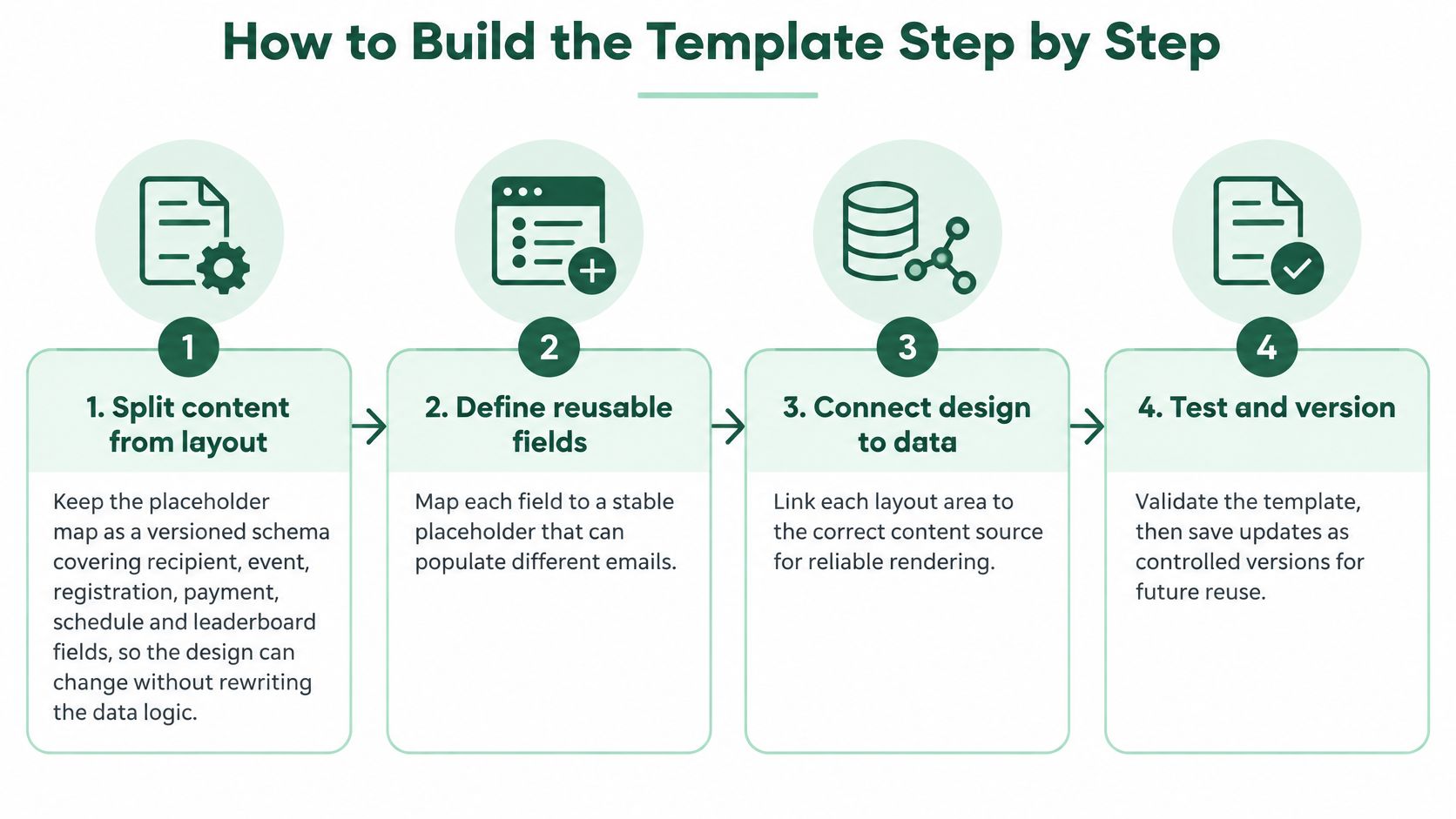
The workflow below maps how content logic connects to reusable design modules before testing and version control.
Follow six steps in order so every layout decision rests on clean data rules:
- Split content from layout. Save your placeholder map as a versioned data schema covering recipient, event, registration, payment, schedule, and leaderboard fields. Keeping field names locked in a separate schema lets staff update header banners or club colors next season without rewriting merge logic.
- Validate required values before rendering. Add a pre-send gate for every essential field. A tee-time reminder should either hold back from sending or switch cleanly to its fallback sentence whenever the tee-time field is blank, rather than blasting half-finished copy to the entire field.
- Build six reusable modules. Construct independent blocks for the header, event summary, tee-time block, payment status, call to action, and footer. Modular blocks let you remove the payment section for a complimentary member event while reusing the exact same header, tee-time block, and footer. Charity coordinators and club staff who also send sponsor outreach alongside player logistics can borrow similar modular copy patterns from resources like AI-powered sales email templates from Stamina while keeping their tournament data schema completely separate from message styling.
- Write one deterministic fallback per module. Assign a single fixed fallback sentence to every optional or time-sensitive block so a missing or malformed value produces identical wording every time. Deterministic fallbacks eliminate guesswork during proofreading and prevent awkward phrasing when two adjacent fields are empty.
- Render one test payload into HTML and plain text. Generate both versions from the same sample record and keep the HTML markup lean so mobile mailboxes render the whole message without clipping. Check accessibility on the HTML output: confirm logical heading order, sufficient color contrast, descriptive alt text, keyboard-accessible links, clean semantic structure, and clear link labels rather than vague "click here" buttons.
- Lock the version after edge-case verification. Run the assembled modules against deliberately broken records before sending any live batch, then save the approved build as the first saved version so future edits are tracked instead of overwritten on the fly.
Shipping Your First Weekly Build
Don't try to template every invitational, match-play bracket, and holiday scramble on day one. Build the first version for one recurring weekly event, render it against one real roster row to verify every module, and check both the HTML and plain-text outputs on a phone. Once that layout holds up across a live week, a recurring automation can copy the event template every one to four weeks, or create the whole season up front, opening and closing registration around each week, sending emails before each week, skipping blocked dates, and adding each event to the season.
Test Edge Cases Before Every Send
Tournament email failures follow the same script: someone clicks "Preview," sees a clean message for Player #1 on the roster, and assumes the rest of the field will look the same. A complete record proves almost nothing. What breaks a dynamic email template on Thursday afternoon is the incomplete record: the substitute added ten minutes ago whose tee time isn't posted yet. Without a tested fallback, Your tee time is {{tee_time}} renders as a broken fragment that triggers immediate confusion.
Purdue University's email best practices guide advises against image-only emails because they fail whenever images are blocked and hurt accessibility, and specifically recommends testing dynamic content with representative test data before sending. Use the lookup table below to deliberately break your template across seven real tournament failure modes before any roster batch goes out.
| Edge Case | Fallback Shown | Check Before Send |
|---|---|---|
| Tee time not yet posted | Your tee time will be emailed once it is set | Send a test record with the tee field blank |
| No score posted yet | Scores update on the live leaderboard link | Open the link on a phone |
| Tee time changed after sending | Updated time with a last updated date | Edit a test record and resend |
| Registration status missing | Contact the event office for your status | Clear the field in a test record |
| Partner not yet assigned | Your partner will be confirmed before the event | Test a pairing with an empty partner |
| Email forwarded to another person | Event details only, no personal figures | Review the subject line and preview text |
| Images blocked | Key details appear as live text | View the email with images off |
Running the Broken-Record Test Across Clients
Create a dedicated sandbox roster instead of editing real member profiles. Load that test list with realistic stress cases: an unusually long last name that might wrap awkwardly in a narrow column, a player name with accent marks like José or Renée to confirm character encoding, and a bare-bones record where every optional field is blank.
Send all seven test cases to staff accounts in Gmail, Outlook, and Apple Mail, then read each rendered fallback sentence out loud. Reading aloud catches missing spaces, doubled periods, and clunky wording that your eyes skip over on a screen. Pay attention to which fields freeze at send time and which resolve live when the player opens the message, because that split decides how your wording should read. For a changed tee time, edit the test record, resend, and verify that both the revised time and a clear "last updated" timestamp appear. Forward one copy to a personal inbox outside the club domain and check the subject line, preview snippet, and body to confirm zero private numbers went along for the ride.
Accessibility Checks That Survive Personalization
Client differences hit dynamic emails harder than static announcements because support for ARIA attributes, keyboard-focused CSS states, and dark-mode media queries varies sharply across mailbox apps. During the images-off pass, confirm the starting time, hole number, course name, and event link still render as live text a player can act on, even when a corporate Outlook strips every graphic. If the email carries a mini tee sheet or pairing summary, check that those fields sit inside a simple HTML table with explicit column headers so a screen reader announces each player and time in order. Finish by tabbing through the message: the leaderboard link should announce itself as something like "Open North Course live leaderboard" rather than a raw URL that tells a keyboard or voice user nothing.
Edge-case testing is an ongoing discipline, not a launch-day task. Rerun all seven broken-record checks after every layout adjustment or new merge field, and file the completed checklist with the event's send log so the next person inheriting the template can see what was already verified.
Start With One Event and Schedule the Rest
Pick one recurring event on your calendar, such as a weekly nine-hole league or a monthly member outing. Finish the placeholder map, assemble the six modules with deterministic fallbacks, and send the template for the first two weeks. Let those first two sends show where the workflow still needs tightening. Review player replies, registrations, and leaderboard visits before duplicating the setup for the rest of the season.
Judge those sends on concrete actions, such as leaderboard visits, completed registrations, or fewer clarification calls to the golf shop. Open rates alone are a weak signal for club lists. As Reform's guide to email personalization testing points out, detecting a 10% relative lift from a 2.5% conversion baseline at 95% confidence and 80% power requires roughly 60,000 recipients per variant. Club and league lists are far smaller than that, so test one clear variable at a time, such as CTA wording or reminder timing, and segment results by event type and data completeness. That gives you a cleaner read than chasing noisy percentage swings.
Three Habits That Keep Templates Clean
- Maintain one template per event type, not one per event. A weekly stroke-play league needs a single master layout where only the underlying event record updates from week to week.
- Keep subject lines clear and private. State the event name and date, leaving scores, balances, and handicaps out so lock-screen previews stay safe if an email gets forwarded.
- Separate send-time details from live details. Keep the tee time, event link, and registration status fixed at send time. Let scores, standings, and results live on the event page so one stale sentence does not send players to the wrong place.
Once those first two weeks run cleanly, put the workflow inside golf event software that can handle the repetition for you. Live Tourney includes Dynamic Emails and Event Automation that automates repeating events, registrations, and emails. It copies the event template every one to four weeks, or creates the whole season up front. That automation opens and closes registration around each week, sends emails before each week, skips blocked dates, and adds each event to the season. Staff can email or text players without leaving the event, email the entire season from the season page, and email the event link to all players. Players can score through a link with no app download required.
Live Tourney gives golf professionals, club staff, and league managers web-based tournament management with built-in Dynamic Emails, Event Automation, and browser-based live scoring from a link. Plans can fit a single event or a full season, and Pro includes custom branded event pages. Build your first reusable reminder, connect it to live leaderboards, and check every fallback against a real event schedule before your next tee sheet goes out. Contact Live Tourney at hello@livetourney.com or visit Live Tourney to learn more.